Building a Monorepo in TypeScript using pnpm
In this article, we will explain what a Monorepo is, why it is beneficial to use it in certain types of projects and how we can build one using pnpm
What is a monorepo?
A monorepo, as its name indicates, is a single repository that contains multiple packages or parts of a system. Let's think, for example, of a basic architecture of a web project. We could have, on one hand, a frontend project and, on the other, a backend project. Both would be totally independent of each other, having their own repository, source code, dependencies, etc.
On the contrary, when we work with a monorepo, these two projects would be under the same repository. They would continue to be totally independent in terms of deployment and execution, but we would have the ability to share certain elements between them when necessary.
When is it interesting to use them?
To illustrate this better, let's imagine that in the previous example we have to extend it and create a third project. This project will be another frontend that will be used by another type of user, for example, an administration panel. It wouldn't be surprising if this new frontend shares UI components with the other frontend, right?
How do we solve this when working in a multi-repo architecture? Probably by copying these components to the new project, which forces us to maintain identical components in two different places.
It would make much more sense for those components to be somewhere both projects can use them, without needing to duplicate them. Something like an external package that both projects import. Well, a monorepo approach enables us to do this in a simple and organized way.
When these two projects live under the same monorepo, we can add a third project (or package) that is responsible for implementing these common components and is imported by both frontends.
Another example
Another interesting example is when we want to share classes or models between the frontend and backend. Frequently, in the backend, classes are defined with the response models that different endpoints will return and, in turn, in the frontend you also define models to manage the response.
These classes are probably duplicated in both projects, so it would make much more sense if they are in an independent package that both projects can import. Again, a case that a monorepo architecture allows us to implement and maintain in a simple way.
How can I build a monorepo?
Having seen the theory and justification for why this approach is interesting, let's see how we can build one in TypeScript using the pnpm tool, which is an alternative to npm that, by its design and operation, fits much better for building this type of architecture.
To start, we locate ourselves in the working folder and create a new empty project using pnpm.
pnpm initYou must have pnpm installed on your machine. On their official website you can see how to install it
This will create the typical package.json in the folder. Up to this point, what we have is a standard Node project managed by pnpm. To convert it to a monorepo project, we have to create a pnpm-workspace.yaml file
packages:
  - "apps/*"
  - "packages/*"
This file specifies in which paths the different packages of our monorepo will be. In this case, we define two possible folders, apps and packages, so we can take advantage and create these two folders in our project, which for now we leave empty.
We make this folder distinction to differentiate applications from packages that are going to be used by these applications. This is not mandatory; for the monorepo there is no distinction between what is an app and what is a package. We make it ourselves for the conceptual difference of what they represent. From now on, when we talk about a package, it will be applicable to both types, since really, that's how it is in the terminology used in a monorepo with pnpm
As we have already mentioned, each of the packages will be an independent entity, new pnpm projects that will have their package.json, with their list of dependencies, custom scripts, etc. But the important thing is that being in the monorepo, it will be responsible for managing the dependencies of each of them. This means that, when we install a dependency in any of the packages, it will be the monorepo who installs it and who decides that the scope of said dependency is for said package and not for the rest. Now, what happens if we install a dependency in the root package? Let's remember that the root package is also a pnpm project, so something can be installed at this level. Well, what will happen is that said dependency will be available in all packages.
In general, we won't want to install dependencies at root, but it is common to make some exceptions. For example, something I usually do is install TypeScript and configure eslint at this root level. The reason for doing this is that I know for sure that all packages will be written in TypeScript and I want to unify code writing rules in all of them. But this doesn't have to be this way; it's totally a decision of the project's engineering culture.
Installing global dependencies
Having said that, let's configure these dependencies visible to all packages. To do this, we simply locate ourselves at the project root and execute:
pnpm install typescript eslint -wIt is important to highlight the use of the -w flag. When you try to install something at the monorepo root, by default pnpm throws you a warning so you are aware that you are at root. Since installing dependencies at this level is not usual, pnpm considers it may be an error and warns you. With the -w flag you indicate that you are aware of it and that you want to install it at root, avoiding the warning. This behavior can also be avoided by setting a project setting, we'll see this later.
Once this is done, we can now install these two dependencies and see how they appear in the root package.json. We are now going to configure eslint, for this we are going to use the configurator that the dependency itself offers us. But before doing this it is important that we keep something in mind. As we said before, pnpm blocks installations at root level if they don't carry the -w flag. The eslint configurator, although it does allow installation using pnpm, will not use this -w flag, so it won't be able to finish correctly. How can we solve this? By setting a project-level setting that tells pnpm to ignore this warning. This is done by creating a .npmrc file and inserting the following line:
ignore-workspace-root-check=trueWith this, the warning will be ignored and it can be installed at root without the -w flag. We then proceed to configure eslint:
pnpm eslint --init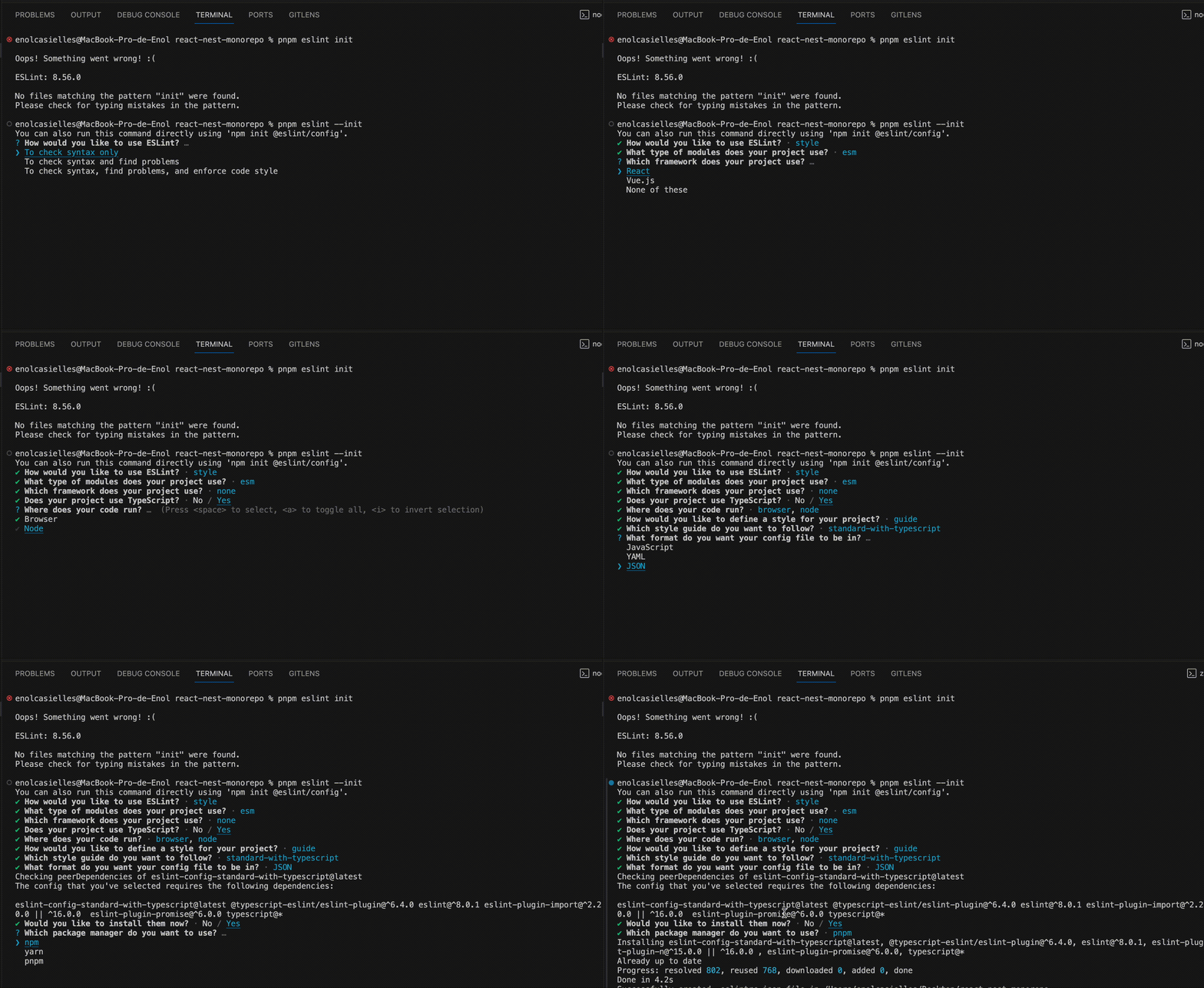
The result of this configurator will be the installation of necessary dependencies and the creation of the .eslintrc.json file at the project root:
{
    "env": {
        "browser": true,
        "es2021": true,
        "node": true
    },
    "extends": "standard-with-typescript",
    "parserOptions": {
        "ecmaVersion": "latest",
        "sourceType": "module"
    },
    "rules": {
    }
}
At this point, we have everything ready to start creating packages in the monorepo 🚀
Defining the project
Before starting with the implementation of the different packages, let's briefly explain the project that, as an example, we are going to address. It will be something very simple since we want to focus on how the monorepo works and not on the application itself. For that reason, I won't go into detail about anything related to the application implementation. Just mention that it will be the typical Task list App, with a frontend made with React + Vite and an API made with Express, both projects in TypeScript.
In addition, to better illustrate how to use a monorepo, we will create a package called core that will be consumed by both apps and will define classes or types that both may need.
In the link to the repo that I leave at the end of the article, you can see the complete implementation of each part
Creating the first package
Let's start with creating the app for the frontend. We go to the apps folder and create a React project using Vite:
pnpm create vite@latest front -- --template react-tsWe follow the configurator instructions to create the React project with TypeScript and install all necessary packages. If after installing it, we go to apps/front and do pnpm run dev, we should be able to correctly launch the React project in execution. Let's now make some modifications to better adapt it to the monorepo.
First of all, let's tell Vite to use port 3000 for our frontend, instead of a random one as it does by default. We go to vite.config.ts and add the following server object:
import { defineConfig } from 'vite'
import react from '@vitejs/plugin-react'

// https://vitejs.dev/config/
export default defineConfig({
  plugins: [react()],
  server: {
    port: 3000,
  }
})
Next, we are going to adapt the project a bit better to live in the monorepo. The default Vite installation will configure its own TypeScript and eslint, but as we mentioned, we want to use the monorepo's. Therefore, what we will do is uninstall these dependencies locally and delete all files. We go to package.json and remove the following dependencies:
typescript
eslint
@typescript-eslint/eslint-plugin
@typescript-eslint/parser
At the time of writing this article, these were the dependencies related to TypeScript or eslint that Vite installed by default. It may be that in your case this changes a bit depending on the Vite version used. Make sure to remove all those that have to do with these tools.
Once removed in package.json, we execute pnpm install in apps/front so the uninstallation is carried out. Finally, we delete the .eslintrc file so it doesn't use the eslint configuration indicated there. After doing this, our frontend project should already use the eslint rules defined at root.
Now, it is true that, depending on the type of TypeScript project we are in, perhaps we are interested in having some different configuration. For example, this frontend package is an application with React and, in this case, it is very common to install the eslint plugin for React eslint-plugin-react. It doesn't make sense for us to install this plugin at root and for our api project to also be exposed to what this plugin dictates. Therefore, we are going to see how the eslint configuration can be adapted for each project.
First, we install at this front level the package with the mentioned plugin.
cd apps/front
pnpm install -D eslint-plugin-react
Then we create another .eslintrc.json file at the front level and add the following:
{
  "extends": [
    "../../.eslintrc",
    "plugin:react/recommended"
  ],
  "plugins": [
      "react"
  ],
  "rules": {}
}
This way we are indicating the following: on one hand, to use said React plugin; on the other hand, to extend the configuration we have defined at root; and finally, to also extend what the plugin itself defines. Finally, just as we have done at root, we define some custom rules, for now empty.
If you use VSCode and the extension for eslint, at this moment errors should appear in your files. For example, we can open App.tsx and see how there are several syntax errors. This is because now the eslint configuration is the one that comes from Standard, the style guide we decided to choose when we configured eslint at root, also extended by the React plugin we just added. So, we have to adapt our code to comply with this. We have two options to address it: fix the errors it indicates or modify the defined rules. This, again, is a decision you have to make depending on how you want to approach your development.
In my case, what I will do is a mix of both options. I will add the following three rules to the eslint configuration at root:
{
  //...
  "rules": {
    "@typescript-eslint/explicit-function-return-type": "off",
    "@typescript-eslint/no-floating-promises": "off",
    "@typescript-eslint/no-misused-promises": "off"
  }
}
And I will add the following to the front project configuration:
{
  //...
  "rules": {
    "react/react-in-jsx-scope": "off"
  }
}
Once this is done, I will correct the rest of the errors or warnings that eslint indicates.
At this point, we have everything ready to create our App. As I said earlier, we won't go into implementation details. You can go to the repo and see how it's done.
Creating another package for the Api
Now that we have seen how to create and adapt a project to the monorepo, let's do the same for the API. As we had said, we will implement an API using Express.
We go to the apps folder and create a new directory called api. In this case we won't use any generator. We enter the api folder and create a new empty pnpm project.
cd apps
mkdir api && cd api && pnpm init
We install the necessary dependencies
pnpm add express
pnpm add -D @types/express @types/node nodemon ts-node
Basically, what we are doing is installing Express and as development dependencies:
- The types for Express and Node
- Nodemon, which is a tool that allows us to reload the server when saving changes to files
- ts-node, which allows us to directly execute TypeScript code
We add a nodemon.json file at root to specify how this tool should work.
{
  "watch": ["src"],
  "ext": "ts",
  "exec": "ts-node ./src/index.ts"
}
What we are telling it is that it should listen to files in the src folder with .ts extension so that, every time one of them is saved, it executes ts-node on the main file. With that, we manage to run the API directly with TypeScript (ts-node takes care of everything underneath) and make it reload with each change (nodemon takes care)
We also add the tsconfig.json file to indicate how the transpilation to Javascript should be performed, as well as some linting rules.
{
  "compilerOptions": {

    "module": "commonjs",
    "target": "ES2020",
    "outDir": "./dist",
    "incremental": true,
    "allowSyntheticDefaultImports": true,

    "strict": true,
    "noUnusedLocals": true,
    "noUnusedParameters": true,
    "noFallthroughCasesInSwitch": true,

  }
}
Finally we create the scripts in package.json to perform dev, build and start.
{
  // ---
  "scripts": {
    //---
    "build": "tsc",
    "start": "node dist/index.js",
    "dev": "nodemon"
  },
}
Creating a shared package
The next thing we are going to do is create the core package, in which we will implement those things that can be common in both frontend and API applications. We create a new folder in packages called core and, being in it, we create again a basic pnpm project.
cd packages
mkdir core
cd core
pnpm init
Next we create the tsconfig.json to specify to TypeScript how it should perform the compilation to Javascript.
{
  "compilerOptions": {

    "module": "ESNext",
    "target": "ES2015",
    "outDir": "./dist",
    "incremental": true,
    "allowSyntheticDefaultImports": true,
    "isolatedModules": true,

    "declaration": true,
    "declarationMap": true,
    "sourceMap": true,
    "removeComments": true,

    "strict": true,
    "noUnusedLocals": true,
    "noUnusedParameters": true,
    "noFallthroughCasesInSwitch": true,

  }
}
This configuration is similar to the API project. In this case, as module system, we use ESNext which will make it more compatible to be imported by different apps. Additionally, we add some properties that allow generating type declarations and map files between source code and compiled code. This is interesting as it helps the IDE understand the package structure and facilitates things like going to the definition of what the package exports when we are using it in another package
We also create a nodemon.json to be able to perform compilation in development mode:
{
  "watch": ["src"],
  "ext": "ts",
  "exec": "npm run build"
}
And finally, we add the scripts to do build and dev in package.json
{
  // ---
  "scripts": {
    //---
    "build": "tsc -p tsconfig.json",
    "dev": "nodemon"
  },
}
And with this we also have this package ready to write the code we need.
Importing the package
The only thing we have to do now is import the core package in the apps. We do this like any other package, we go to the directory of each of the apps and do:
pnpm add core@workspace:^This way, we indicate to install a package called core that is in the workspace, to search for it directly from the monorepo and not in external repositories.
Once this is done, we can now use in our apps those components that core exports.
Scripts in parallel
To finish this article, let's see an interesting feature of monorepos that we haven't commented on yet: the ability to execute all scripts at once and in parallel. If we notice, all three packages have a dev script. It is very possible that when we are developing, we want to have these development environments up in all three packages. Pnpm allows us to do this in a very simple way. We simply have to go to the root package.json and define the following dev script there:
{
  // ---
  "scripts": {
    //---
    "dev": "pnpm run --parallel dev",
  },
}
This searches for all dev scripts in each of the packages that make up the monorepo and executes them in parallel.
Another interesting thing that pnpm offers us is the ability to filter a script to only certain packages. This is done using the --filter flag. This allows us to create scripts with the most common development operations we may need. For example, we could configure to launch each of the apps separately or both at once but without the core package.
{
  // ---
  "scripts": {
    //---
    "dev": "pnpm run --parallel dev",
    "dev:front": "pnpm run --filter front dev",
    "dev:api": "pnpm run --filter api dev",
    "dev:apps": "pnpm run --filter api --filter front dev"
  },
}
End
I hope this article serves as an introduction to start working with monorepos in TypeScript using pnpm. I have tried to perform step by step the configuration I usually use to work with this type of architecture in TypeScript projects. I think it can serve as a good base to start building projects using this approach.
In subsequent blog articles, we will use this as a base to create certain projects and/or explain some development techniques I usually use in my day to day.
Finally, I leave here the link to the github repository where everything we have been doing in this article is implemented.